
PetroBench automatically versions every change you make to a simulation - no manual saving or file copies required. Each time you adjust a parameter (like rod taper, well data, or preferences), the platform snapshots the current state and creates a new version.
What each version captures
- Who made the change
- When it happened
- What fields were modified
- The complete simulation state at that moment
Versioning is always on and applies to every simulation in your workspace, so you can experiment freely and always return to a previous design.
Viewing version history
- Open any simulation.
- Click the clock icon in the top toolbar.
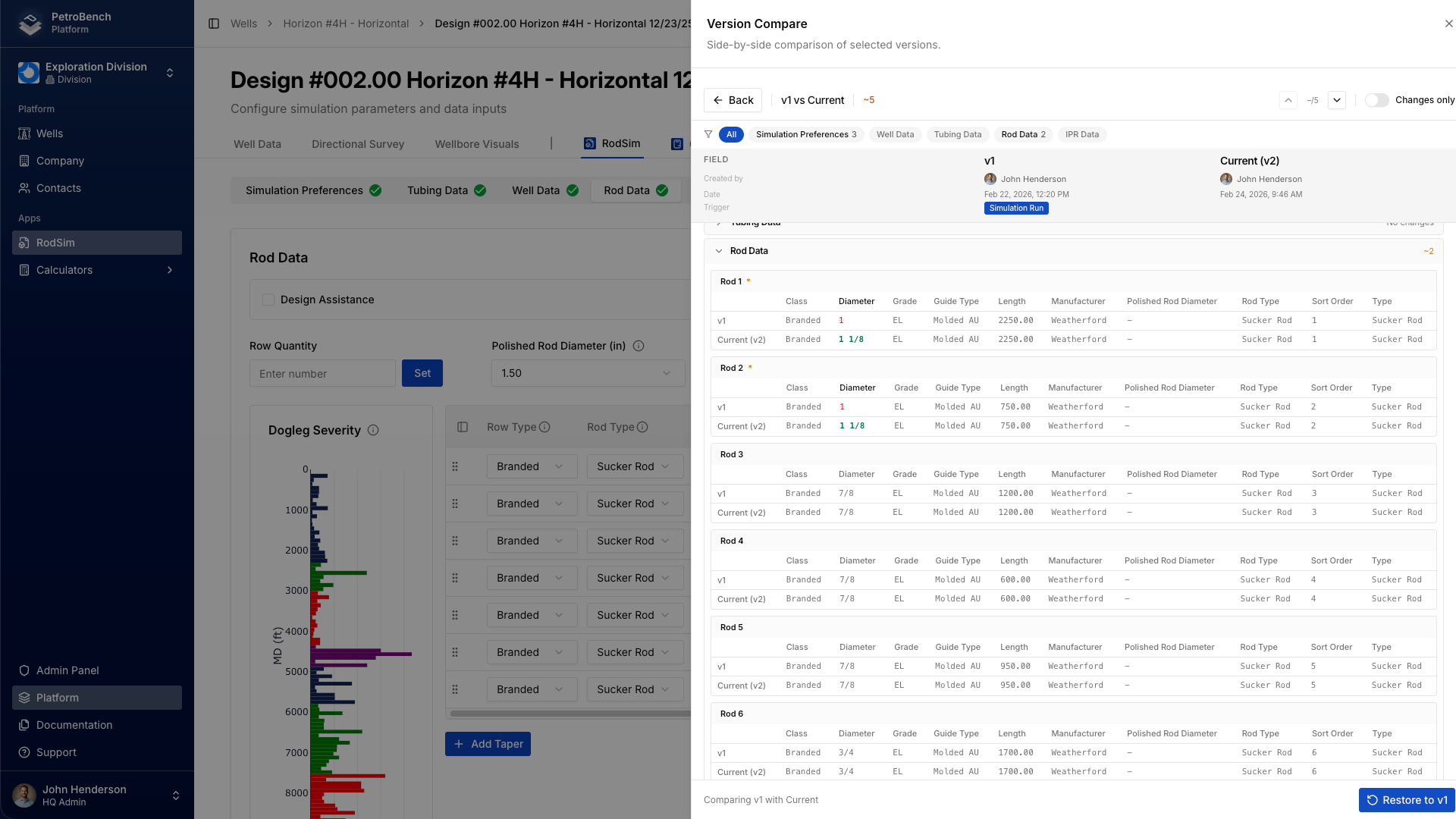
- A panel slides in from the right showing a chronological list of versions.
Each version entry shows:
- The team member who made the change
- A timestamp (relative or absolute)
- A brief auto-generated summary of what changed
For long-running simulations, you can filter the list by date range or team member to quickly find the versions you care about.
Adding version notes
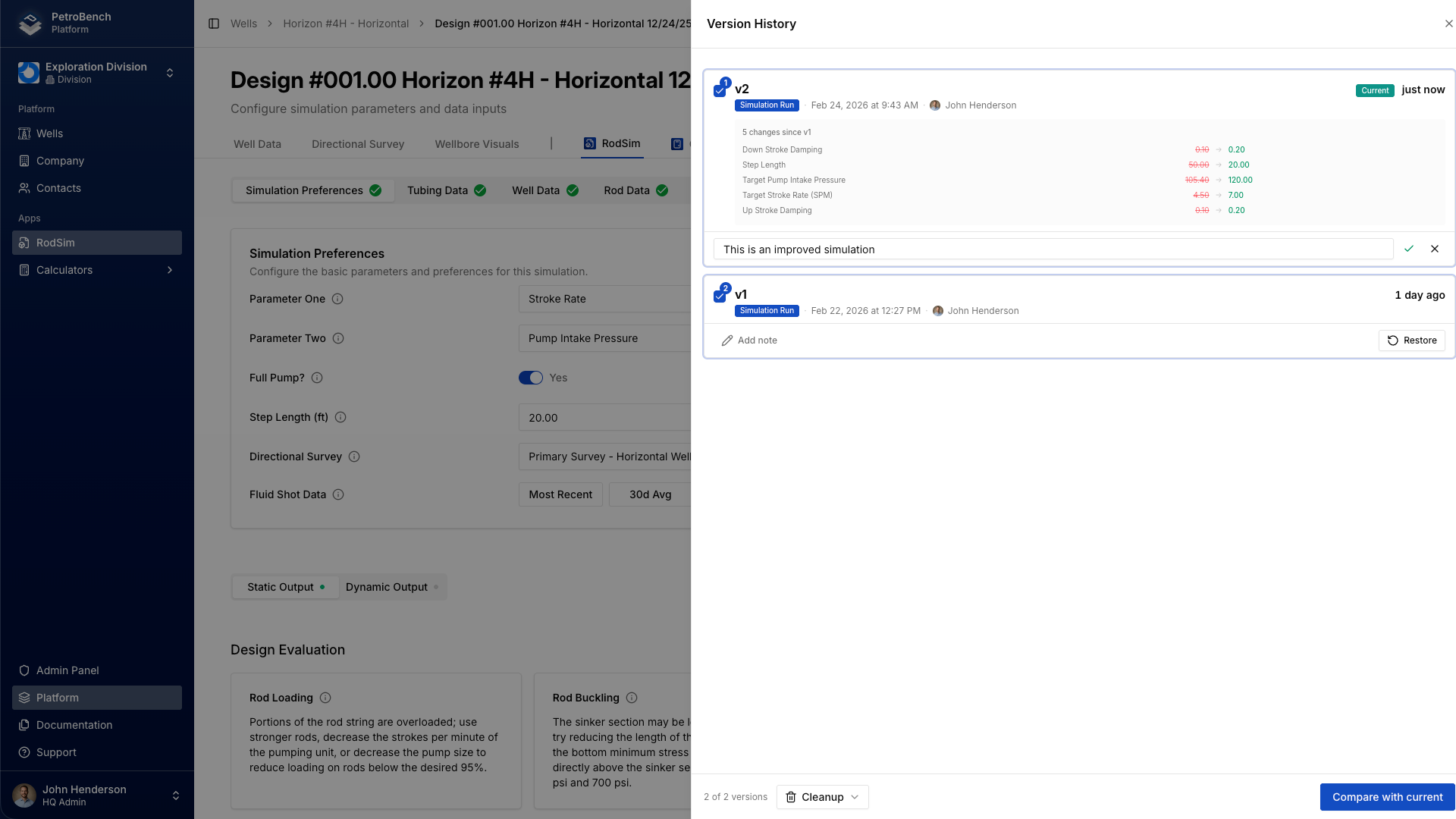
Automatic summaries describe what changed; notes capture why.
To add a note:
- In the history panel, find the version you want.
- Click the pencil icon next to that entry.
- Type your note and click Save.
Notes are visible to your entire team and are ideal for:
- Documenting design decisions
- Flagging versions for review
- Explaining why specific parameters were chosen
Examples of good notes:
- "Client requested max rod stress under 25 ksi for this well."
- "Reverted rod taper after field data showed higher loads than expected."
- "Baseline design for Q2 review - do not modify."
Comparing two versions side by side
To see exactly what changed between two points in time:
- Open the version history panel.
- Select any two versions.
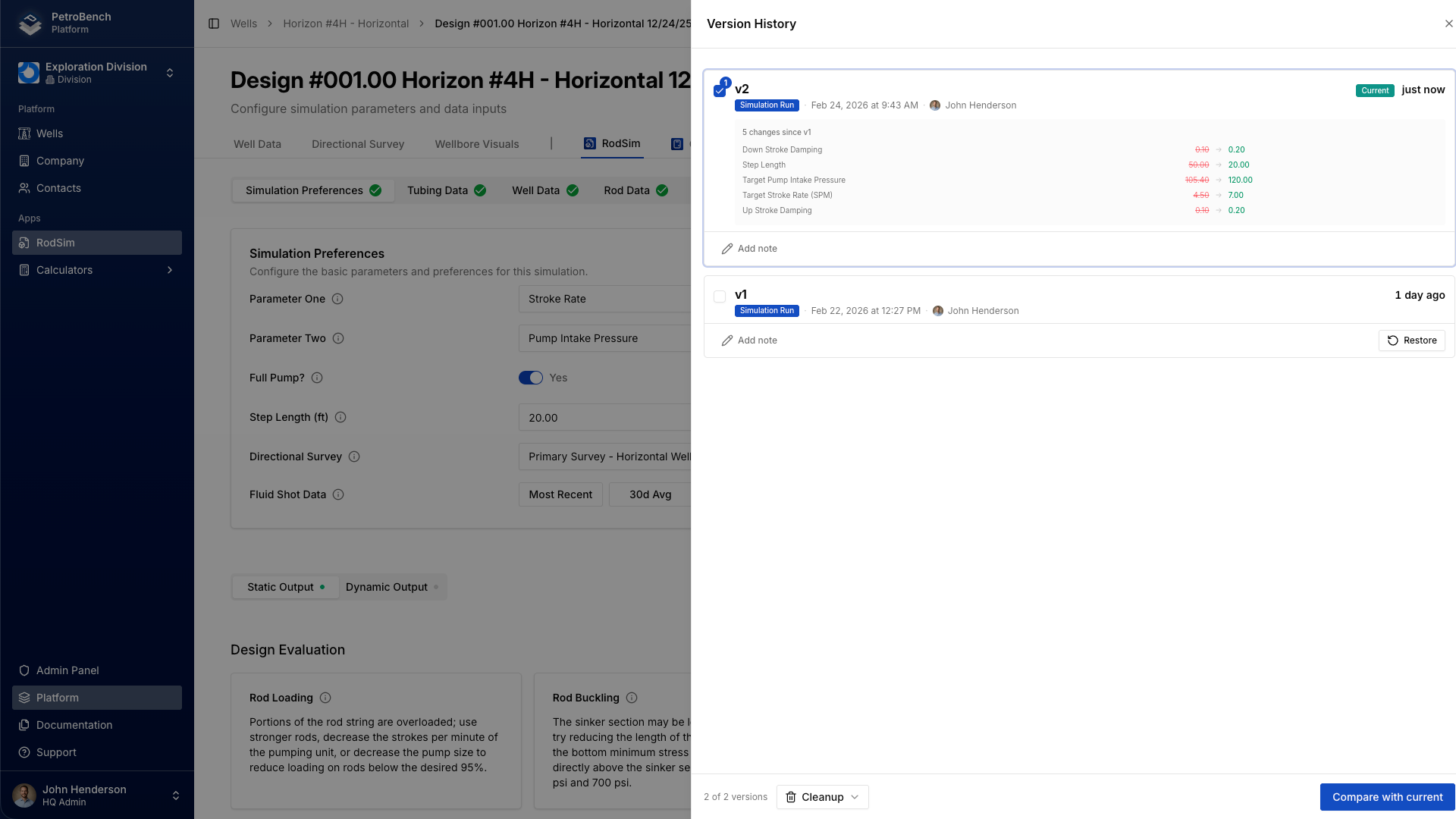
- PetroBench opens a split view comparison.
The comparison highlights:
- Parameter changes: Modified fields with old (left) vs new (right) values
- Added/removed sections: For example, rod string segments that were added or deleted
- Numerical differences: Deltas for values like stress, load, and stroke length
This is especially useful for design reviews and understanding the impact of updates.
Tips for effective comparisons
- Compare against a baseline: Pin a known-good version and compare new iterations to it.
- Check around data imports: After importing new well data, compare before/after versions to see how design parameters shifted.
- Review before sharing: Compare your current version with the last shared version to confirm exactly what changed.
Restoring a previous version
When you know you want to roll back to an earlier design:
- Open the history panel.
- Select the version you want.
- Click Restore this version.
PetroBench does not overwrite your current state. Instead, it:
- Creates a new version that is a copy of the selected one
- Preserves the full history, including all intermediate versions
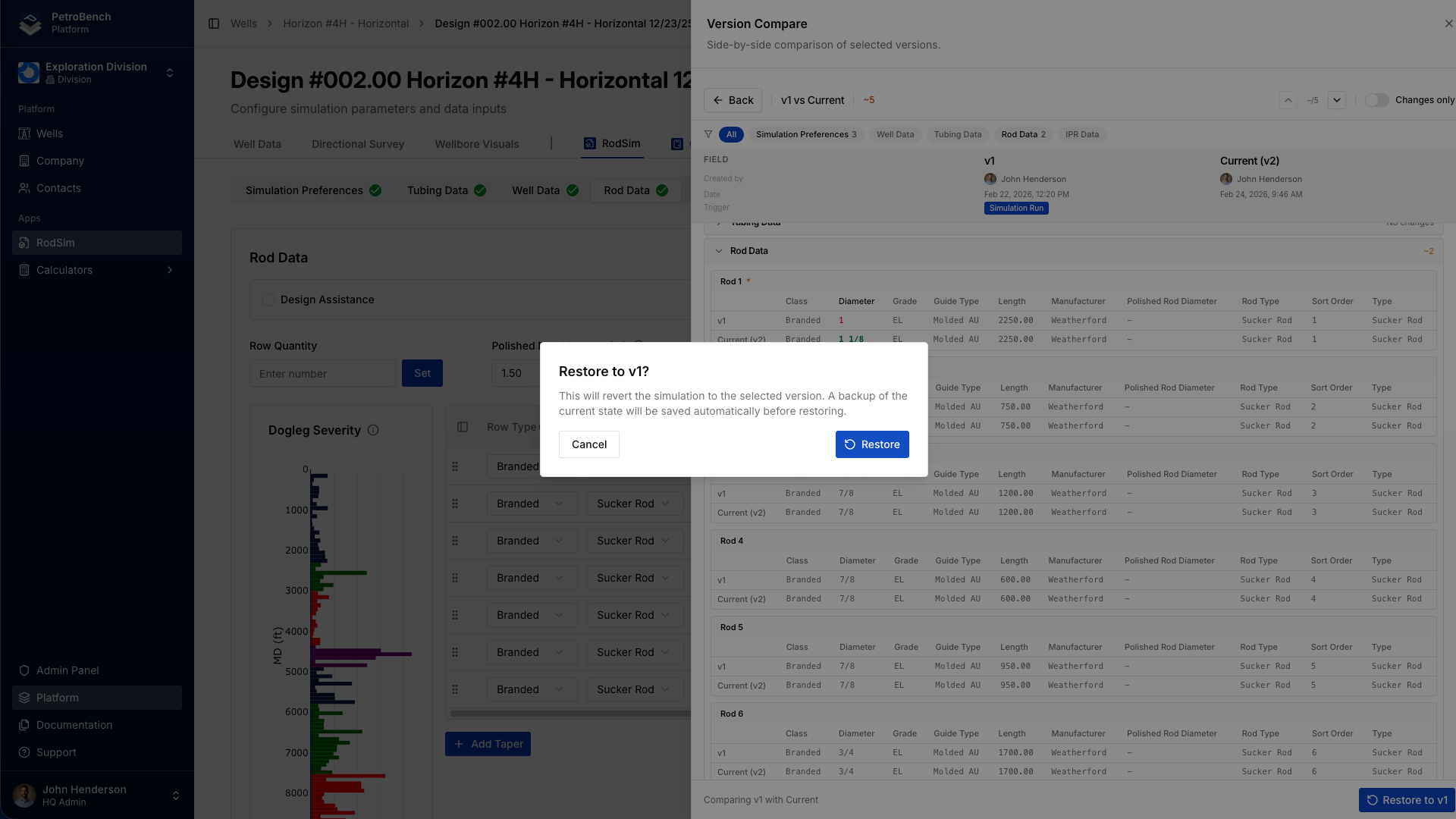
Before restoring, a confirmation dialog shows:
- Which version you’re restoring (timestamp and author)
- A summary of changes relative to your current state
- An option to add a note explaining why you’re restoring
After restore, your simulation reflects the earlier state, and a new history entry appears: "Restored to version from [date]."
Restore vs. compare
- Restore when the earlier version is the design you want going forward.
- Compare when you’re still investigating what changed.
- Restore then modify when the earlier version is close but needs small adjustments.
Team collaboration and audit trails
Version history is a collaboration and compliance tool as much as a safety net.
Design reviews
- See the full evolution of a simulation.
- Walk through decision points and associated notes.
- Understand how the current design was reached.
Handoffs
- When simulations move between engineers or teams, the history provides built-in context.
- New owners can review changes and notes without a separate briefing.
Compliance and documentation
- Every change is timestamped and attributed.
- You can export the version history as part of a well’s documentation package.
Accountability without friction
- Each change is tied to a specific team member.
- This makes it easy to find and contact the right person about a design decision, without adding extra process overhead.
Summary
PetroBench’s automatic version history lets you focus on engineering instead of file management:
- View history: Click the clock icon to browse all versions.
- Add notes: Capture the reasoning behind important changes.
- Compare: Select two versions to see precise differences.
- Restore: Roll back to any previous version without losing your current history.
No manual saves. No duplicate files. No guessing what changed between versions.